
Convert Excel to PDF
Convert your Excel spreadsheets to PDF documents. Select specific sheets or convert all at once.
Click to upload or drag and drop
Excel files only (XLS, XLSX – Max 10MB)
Select Sheets to Convert
Conversion Options
Include Grid Lines
Show cell borders in PDF
Converting to PDF…
Processing your Excel file
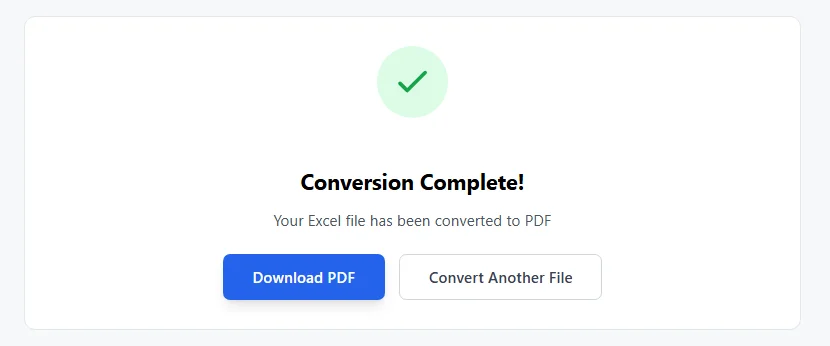
Conversion Complete!
Your Excel file has been converted to PDF
Why Convert Excel to PDF
Excel spreadsheets work great for data and formulas. But sharing them can cause issues. People without **Microsoft Excel** may not open files right. Formulas might change by accident. Layout can shift on different devices. Converting Excel to PDF fixes that. PDF keeps everything fixed. No one can edit by mistake. Formatting stays the same everywhere. Charts and tables look sharp.
In the US, many use this for reports. Invoices go out safe. Contracts stay secure. Resumes look pro. Students share projects easy. PDFs open on any device. Phones, tablets, computers all work. No need for Microsoft Office.
Benefits of Excel to PDF Conversion
Switching Excel files to PDF format helps a lot:
- Protects data. Turns editable spreadsheets into read-only PDF documents.
- Keeps layout. Tables, charts, fonts stay exact.
- Makes sharing safe. No accidental changes to Excel formulas.
- Works for printing. PDF pages fit paper well.
- Archives files long-term. PDFs last without software changes.
- Combines with other tools. Merge PDFs or compress later.
Tools like **Adobe Acrobat** do good jobs. But they cost money. Free online converters work fine for most needs.
How to Convert Excel to PDF Here
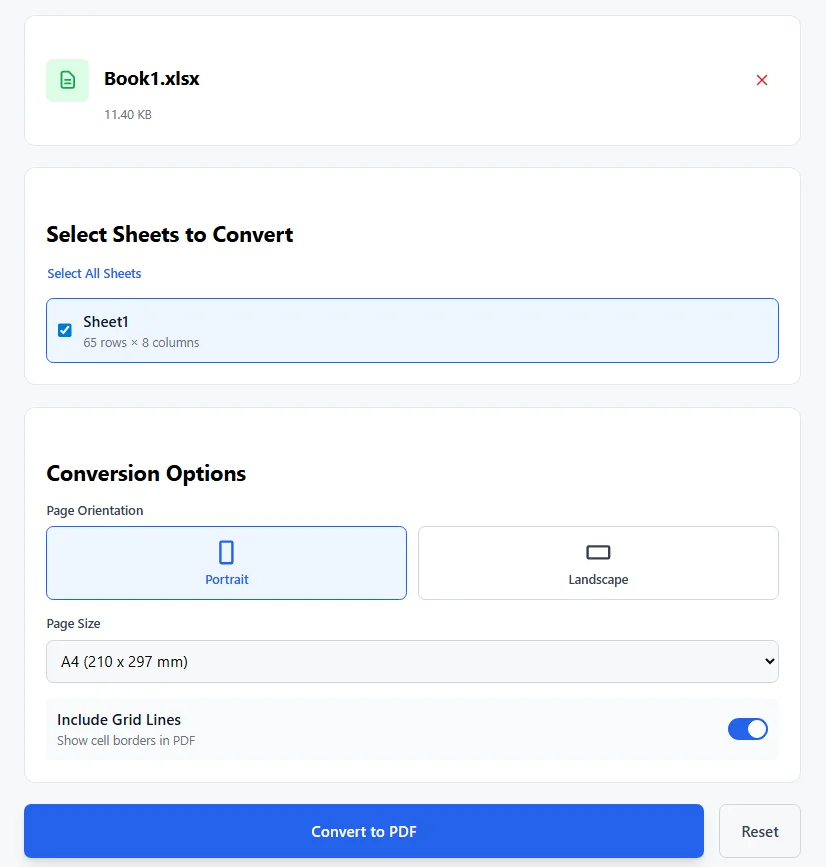
Our free tool makes it simple. Handles XLS and XLSX files up to 10MB. You pick sheets and options. Steps are:
- Drag your Excel file or click to upload.
- Tool reads the Excel workbook.
- See all worksheets listed with row and column counts.
- Check boxes to select sheets. Convert one or all.
- Pick page orientation: portrait or landscape.
- Choose page size: A4, Letter, or Legal.
- Turn grid lines on or off for cell borders.
- Click Convert to PDF.
- Download your fresh PDF file.
Process stays in your browser. Files remain private.
Options in This Converter
You control the output:
- Select specific Excel worksheets or all.
- Portrait fits tall data. Landscape suits wide tables.
- A4 is common outside US. Letter works for US paper.
- Grid lines show borders like in Excel sheet.
Tool handles multiple Excel documents one at a time. Good for Excel reports or invoices.
Common Uses for This Conversion
People convert Excel to PDF to:
- Share financial reports safe.
- Share professional-looking invoices.
- Archive Excel data long-term.
- Print spreadsheets clean.
- Protect sensitive spreadsheet data.
- Make read-only versions for clients.
Example: A big Excel workbook with many worksheets. Convert selected ones to one PDF. Easy to email.
Tips for Good Excel to PDF Results
Get clean PDFs with these:
- Check layout in Excel first.
- Use landscape for wide data.
- Keep grid lines on for clear tables.
- Convert scanned PDFs back if needed, but this tool starts from Excel.
- Combine with other PDF tools like merge PDFs or sign PDFs.
- Avoid large files over 10MB.
Unlike paid PDF editors or Nitro PDF, this stays free. No watermarks on converted PDF.
Why This Free Converter Works Well
Many options exist. Adobe Acrobat converts well but costs. SmallPDF or PDF24 limit free uses sometimes. This tool gives:
- No sign-up needed.
- Full sheet selection.
- Custom options like orientation.
- Fast file conversion.
- Private processing.
Great for one-time PDF converter needs or regular use.
Other Helpful PDF Tools
After conversion, you might need more. Compress PDF files. Merge PDFs. Split pages. Add passwords to protect PDFs. All help manage documents.
Excel stays powerful for work. But PDF shines for sharing. Convert Excel to PDF free here. Upload your Excel file now. Get a clean PDF fast. Questions? Add comments below.
FAQs
1. Can I convert Excel to PDF for free with this tool?
Yes. The tool is completely free. No sign-up needed. Convert as many Excel files as you want. No hidden costs or limits.
2. What Excel file formats does this converter support?
It works with XLS and XLSX files. These are the common Microsoft Excel formats. Files up to 10MB load fine.
3. Do I have to convert all worksheets in the Excel workbook?
No. You pick which worksheets to include. Check boxes next to each Excel worksheet. Convert one sheet or all at once.
4. Will the PDF keep my Excel formatting, charts, and grid lines?
The tool keeps basic layout, text, and tables. You can turn grid lines on or off. Charts and complex formulas show as static images. Simple tables look clean in the new PDF file.
5. Is my Excel data safe when I use this online converter?
Yes. Everything processes in your browser. No files upload to servers. Your Excel document stays private on your device.