
Add Page Numbers to PDF
Add page numbers to your PDFs with ease. Choose position, typography, and format.
Click to upload or drag and drop
PDF files only (Max 10MB)
Page Number Settings
Adding page numbers…
Please wait while we process your PDF
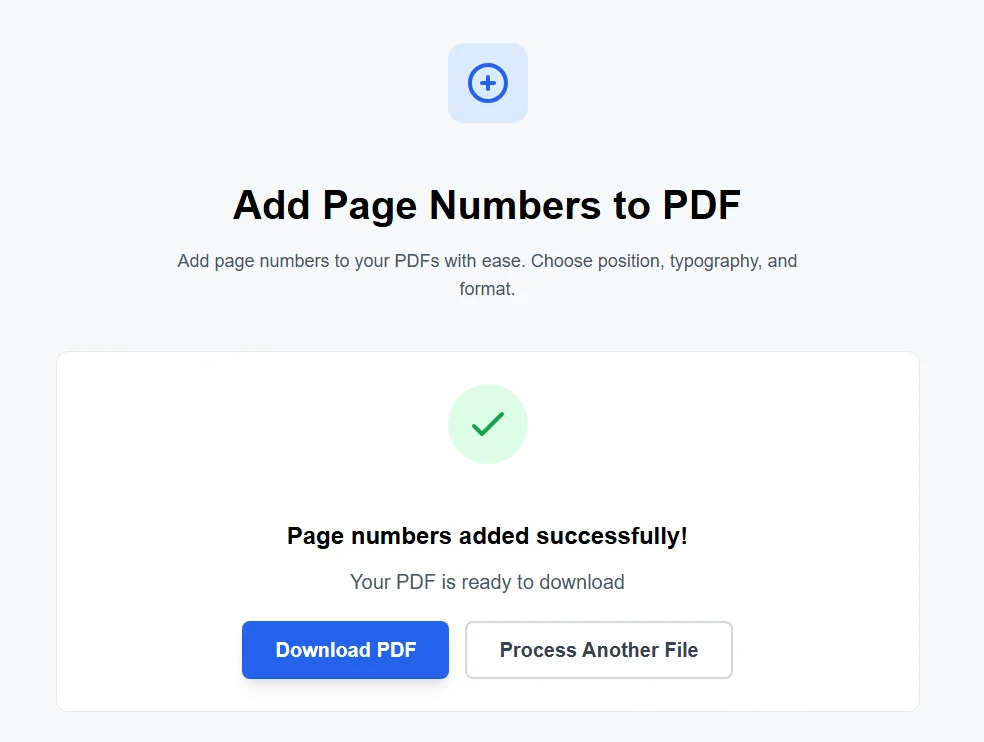
Page numbers added successfully!
Your PDF is ready to download
Why You Might Want to Add Page Numbers to PDFs
If a report youre working on is forever long, whether its an ebook, a thesis, or even just a bunch of scanned documents all tossed together into one pdf file, adding page numbers is a total game changer. Its really helpful for people to flip through it, whether they’re reading on screen or printing it out. Now when you say “check out page 27” it actually means something – you can actually find the page you’re looking for. In the States, where people are always working on business proposals, school papers, or other legal stuff, its pretty standard to have clear page numbers in your pdfs so everything looks neat and organized.
A lot of us start writing in google docs or Microsoft Word, then export to pdf & go “Hey wait, where did the page numbers go?” – its a pretty common mistake. You don’t have to spend a load of cash on fancy software like Adobe Acrobat though. Our free tool lets you add page numbers to your pdf right from your browser – no need to download anything or even sign up.
Step-by-Step: How to Add Page Numbers to a PDF Document
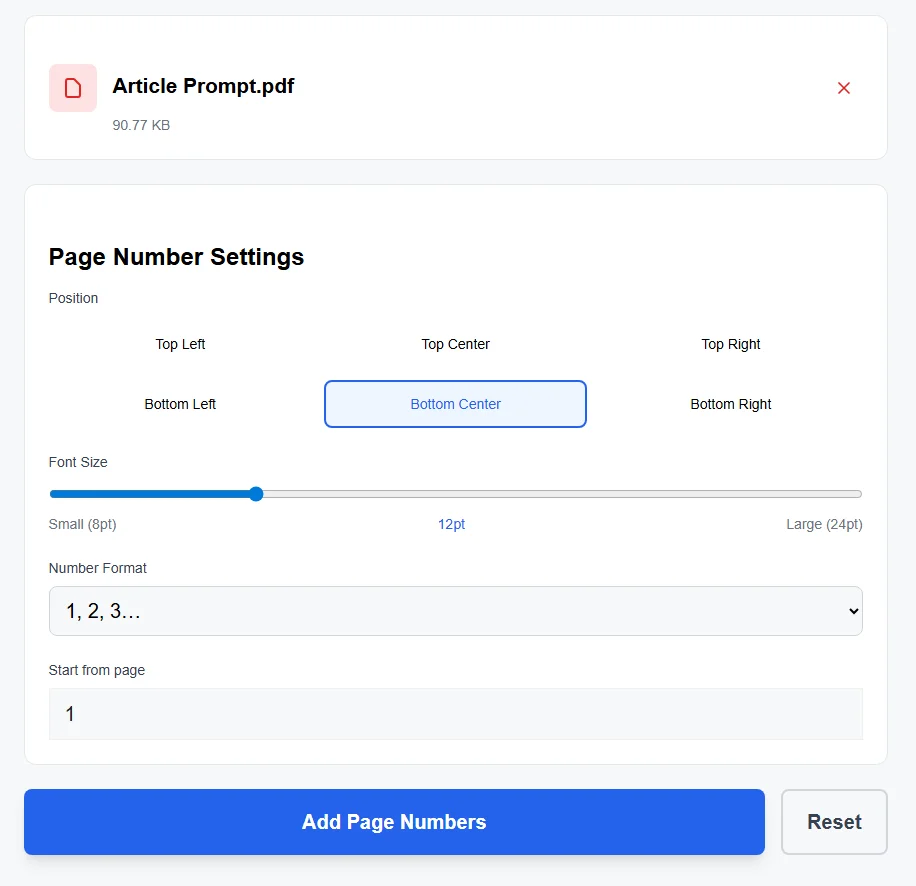
If you found out you forgot to add page numbers earlier , or perhaps you want to tweak an existing PDF document. Here’s the lowdown on how to do it:
- Simply drag and drop your PDF file – ideally it should be under 10MB – or click to upload it.
- Choose which spot you want to put the page number in – you’ve got options like top-left, top-center, top-right, bottom-left, bottom-center (this one is the default, by the way), or bottom-right. Bottom-center generally works best without getting in the way of the content.
- Now adjust the font size – you can go from tiny (8pt) all the way up to much larger (24pt). 12pt is a good starting point for most pdf pages – it’s big enough to read but not so big it dominates the page.
- Next, pick a format – basic numbers (1, 2, 3…), or something like “Page 1, Page 2…”, or you could even go with “1 of 10” if you want to show how many pages there are in total.
- If you happen to have a cover page or a title page that you don’t want to have numbers on, you can set it so the numbering starts from page 2 or whatever is needed in your case.
- Just hit that button to add the page numbers, wait a second or two, and your new numbered file is ready to be downloaded.
The good news is that everything happens right where you are – on your own device, so to speak – you don’t need to upload any files to a server, which means it’s all done privately, quickly too.
What Makes This Page Numbers Tool Handy
No subscriptions, no watermarks, just a clean pdf tool focused on one job: adding page numbers reliably. It’s not overloaded with extras like signing PDFs or heavy editing.
- Flexible positions and formats to fit any document pages.
- Works on reports, ebooks, contracts—anything with multiple pages.
- Handles the page number flow naturally, even if you start numbering later.
- Free and instant, with no limits on how often you use it.
Real-Life Ways People Use It
From students finishing up papers to professionals prepping reports, adding page numbers afterwards is super common. Think about:
- Putting the finishing touches on a school project or dissertation with proper pdf page numbers.
- Making legal or business documents easier to reference by specific page or page range.
- Turning a simple collection of notes into a polished manual or guide.
- Fixing up an older PDF text file that missed numbering the first time around.
Unlike some other tools out there (we won’t name names, but you know the ones with limits or ads), this keeps it simple and effective.
Quick Tips for Great-Looking Page Numbering
A few things I’ve learned that help get the best results when you add page numbers in one PDF:
- Go with bottom-center if you’re unsure—it rarely overlaps important stuff.
- Stick around 10-14pt for visibility without dominating the page.
- For anything formal, the “Page 1 of 10” format feels professional and shows the full count.
- If there’s a cover, starting from the second page keeps the first page clean.
Give it a try—upload your PDF up top and see how easy it is to get a professional, page-numbered PDFs ready to go. If you’ve got questions or want to add comments, feel free!