Compare PDF
Upload two PDF files and compare them to find differences in content and structure.
First PDF
Upload First PDF
Click or drag file here
Second PDF
Upload Second PDF
Click or drag file here
Comparing PDFs…
Analyzing differences between documents
Comparison Results
Page-by-Page Analysis
Visual Preview (Page 1)
First PDF
Second PDF
Why Compare PDF Files?
Everyone deals with multiple versions of the same file. You write a contract today. Tomorrow your boss sends back changes. Or you finish a school report and your teacher marks edits. How do you spot what changed? You compare PDF files. This simple step shows added words, removed lines, or new paragraphs. It stops confusion and saves hours of reading line by line.
In the US, people compare PDFs every day. Lawyers review contracts before signing. Office teams check updated reports. Students look at draft feedback. Writers track edits on manuscripts. Even home users compare bills or forms to catch errors. A good comparison tool makes all this fast and clear.
Many turn to paid software like Adobe for help. But that costs money and needs downloads. Our free tool lets you compare PDF files online in seconds. No account. No install. Just upload and see results.
Before comparing files, you can merge PDF documents or add a watermark to protect your content.
How to Compare PDF Files with This Free Tool
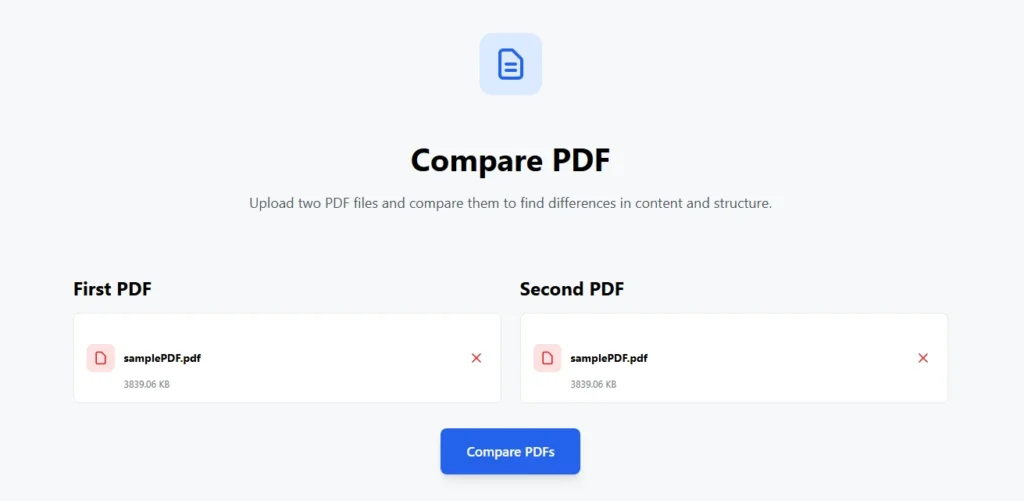
It is easy for anyone to use. The tool reads text from both PDFs and checks page by page. You also get a side-by-side view to see pages at the same time. Here are the exact steps:
- Click or drag your first PDF into the left box. Files up to 10MB work fine.
- Do the same for the second PDF on the right side.
- Once both files show up, the Compare PDFs button turns blue. Click it.
- Wait a few seconds while the tool checks everything.
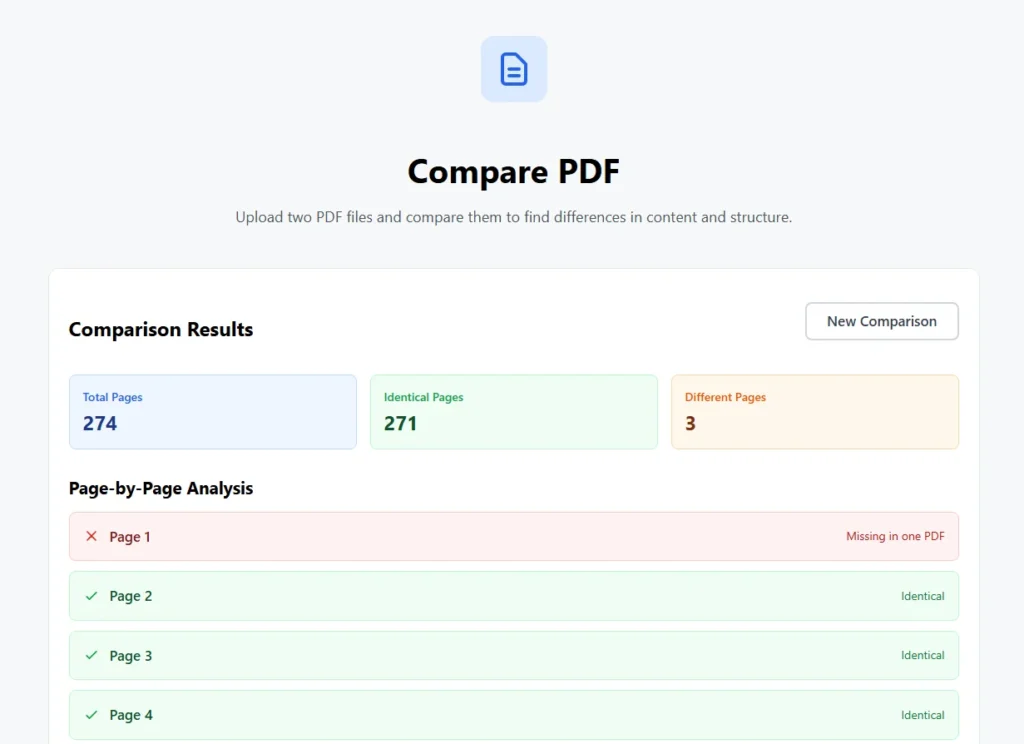
- Results appear: total pages, identical pages, and pages with differences.
- Scroll down to see a list of every page and what changed.
- Use the preview section to flip through pages side by side. Click Next or Previous to move.
- Ready for new files? Hit the New Comparison button to start over.
The whole process runs in your browser. Your PDF documents never leave your computer. This keeps everything private and safe.
What Kind of Differences Does It Find?
Our tool pulls all the text from each page and compares it word for word. You get clear results:
- Identical pages show a green check mark.
- Different pages show an orange warning and tell how many characters changed.
- Missing pages show a red mark if one file has extra pages.
The visual preview helps too. You see both PDFs at once. Layout changes stand out right away, even if the text matches.
This works best for text documents like contracts, reports, essays, or forms. Scanned files with clear text work well. Pure image scans may show differences even if they look the same.
If you find differences between files, you may want to edit PDF pages or split PDF documents for better control.
Real Examples of People Using This Tool
Lawyers upload an old contract and a new one to spot added clauses fast. They avoid missing hidden changes before signing.
Office workers compare yesterday's sales report with today's version. They quickly see new numbers or updated charts.
Students get feedback on papers. They upload their draft and the teacher's marked copy to find every comment.
Writers send manuscripts to editors. When they get revisions back, they compare PDFs to accept or reject each edit.
Small business owners check invoices. They compare last month's bill with this month's to catch surprise charges.
Teachers compare lesson plans from last year to update them without starting from scratch.
Anyone sharing files with a team uses this to make sure everyone works on the latest version.
How This Free Tool Beats Other Options
Some websites let you compare PDF files, but they ask for email sign-up. Others limit free uses to a few per day. Many add watermarks or push paid plans. Adobe works great but costs money each month.
Our tool stays simple and truly free. No limits on how many times you use it. No ads that get in the way. No extra marks on your files. Just fast, clean comparison results every time.
After identifying changes, you can add page numbers to PDF files for easy reference.
Tips to Get the Best Results
Follow these easy tips for smooth comparisons:
- Pick PDFs that contain real text, not just pictures of text. This gives the most accurate word matches.
- Keep each file under 10MB. Smaller files finish faster.
- Name your files clearly, like "Contract-Old.pdf" and "Contract-New.pdf". This helps you remember which is which.
- Look at the summary numbers first. If most pages are identical, you can focus on the few that changed.
- Use the side-by-side preview for big layout shifts, like moved images or new headings.
- If one PDF has extra pages at the end, the tool marks them as missing in the shorter file.
- Always double-check important documents. The tool helps, but your eyes catch the final details.
Common Questions People Ask
Does it work on phones? Yes, the site fits mobile screens. Upload and compare on the go.
Can I compare more than two files? Do them two at a time. Compare version 1 and 2, then 2 and 3.
Is it safe for private documents? Yes. Nothing uploads to a server. Everything stays on your device.
What if the PDFs have images or tables? Text comparison still works. Use the visual preview to check pictures and layouts.
Ready to try? Scroll up and drop your two PDF files in the boxes. Click compare and see differences right away. It takes less than a minute for most files. If you have questions or need help with a specific comparison, add comments below. I check them and reply fast.