
Add Watermark to PDF
Stamp an image or text over your PDF in seconds. Choose the typography, transparency and position.
Click to upload or drag and drop
PDF files only (Max 10MB)
Watermark Type
Click to upload image (PNG, JPG)
Adding watermark…
Please wait while we process your PDF
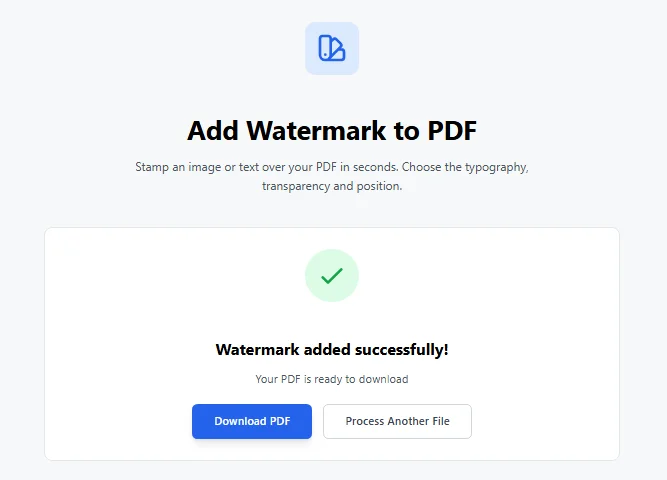
Watermark added successfully!
Your PDF is ready to download
Why Add a Watermark to Your PDF Files?
I’ve lost count of how many times I’ve shared a PDF and then kicked myself for not throwing a watermark on there first – be it a clients proposal, a draft report, an eBook I’m working on, or even a personal document I just need to keep to myself – and wished I’d just slapped a logo or a ‘DRAFT’ on the thing to make it clear who it belongs to & so people can’t just pass it off as their own .
Its a pretty simple thing – a watermarked PDF just makes sense in a country like the US where people are constantly emailing each other contracts, NDAs, or design mockups to name a few – its good practice that stops your work from getting used without your permission, and at the same time doesnt make the document hard to read
Nowadays a lot of people go out and buy fancy tools like Adobe Acrobat just so they can watermark PDFs – but thats just a waste of cash – a free online tool is all you need to add a watermark to a PDF right inside your web browser – no need to download any pesky software or sign up for anything – no limits or anything
How to Add Watermark to PDF – Quick and Easy Steps
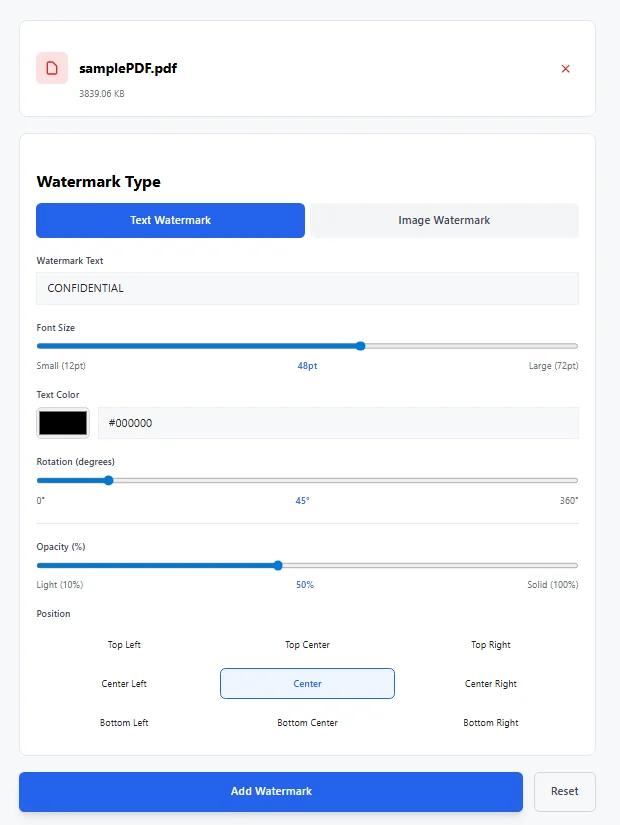
It works for a single PDF or whenever you need to watermark multiple PDFs (just do them one at a time). You can add text watermark or image watermark, tweak everything, and get a clean result. Here’s how I do it:
- Drag your PDF file in or click to upload (up to 10MB—plenty for most documents).
- Choose between text watermark (default) or image watermark (great for adding your logo).
- For text: type whatever you want—“CONFIDENTIAL”, “DRAFT”, “DO NOT COPY”, your name, etc. Adjust font size (12–72pt), color, rotation (45° diagonal is classic), and opacity so it’s visible but not overpowering.
- For image: upload a PNG or JPG (your logo works best on transparent background). Scale it down (30–50% usually looks good) and set opacity.
- Pick the position—center is most common for big diagonal text, but you’ve got top-left, bottom-right, everywhere in between.
- Hit “Add Watermark”, wait a second, and download your watermarked PDF.
Everything processes on your device, so your files stay private—no uploading to random servers.
Text vs Image Watermark – Which One Should You Use?
Both have their place:
- Text watermarks are perfect for “CONFIDENTIAL”, “SAMPLE”, or “INTERNAL USE ONLY”. Big, rotated, semi-transparent text across the center screams “don’t share this” without hiding content.
- Image watermarks shine when you want to add logo branding. Restaurants putting menus online, photographers sharing proofs, real estate agents sending property packets—all use logo watermarks to keep their brand front and center.
You can make it subtle (low opacity) for previews or bold (higher opacity) for stronger protection.
Real-World Ways People Use This Free Watermark Tool
I’ve seen (and done) all of these:
- Freelancers adding “DRAFT” to proposals before client review.
- Photographers stamping proofs with their logo so clients don’t use unpaid images.
- Lawyers marking sensitive contracts “CONFIDENTIAL”.
- Teachers sharing lesson plans with “SAMPLE – DO NOT DISTRIBUTE”.
- Small businesses putting their logo on invoices or quotes sent as PDF.
- Authors sharing advance copies with “UNCORRECTED PROOF”.
Why This Tool Beats the Rest
Plenty of sites offer to watermark PDF online, but most want you to create an account, limit free uses, or sneak in a tiny logo of their own. Here? Completely free, no registration, no hidden watermarks on your final file. You control position, opacity, rotation, color—full custom watermark options without paying for premium.
Tips for the Best-Looking Watermarks
A few things I’ve learned along the way:
- 50% opacity is usually the sweet spot—visible but doesn’t distract from content.
- 45° rotation for text makes it harder to crop out.
- For logos, use a transparent PNG and keep scale under 40% so it doesn’t cover text.
- Center position works best for protection; corners are nicer for subtle branding.
- Test on one page first if you’re unsure—easy to adjust and re-process.
Got a file to protect? Throw your PDF up in the uploader above and in no time you’ll have a watermarked version that looks totally pro. If anything goes haywire or you’re wondering about settings, just add a comment below – I’m always here to lend a hand.
FAQs
How do I add a watermark to a PDF for free?
You can add a watermark to a PDF for free using an online PDF watermark tool. Upload your PDF, choose text or image watermark, adjust size, opacity, rotation, and position, then download the watermarked PDF. No signup or payment is required.
Can a PDF be watermarked?
Yes, a PDF can be watermarked easily. You can add text like CONFIDENTIAL or DRAFT, or add a logo image. The watermark appears on every page and helps protect ownership or show document status.
How do I watermark a PDF without Adobe?
You do not need Adobe to watermark a PDF. Use a free online tool that works in your browser. Upload the PDF, customize the watermark settings, apply it, and download the file. This saves time and avoids paid software.
How to apply a watermark?
Upload your PDF file.
Select text watermark or image watermark.
Customize font size, color, opacity, rotation, and position.
Click add watermark.
Download your watermarked PDF.
How do I put a stamp on a PDF?
You can put a stamp on a PDF using a free online watermark tool. Upload your PDF, choose text or image watermark, and use it as a stamp. Add text like APPROVED, PAID, or CONFIDENTIAL, or upload a logo image. Adjust size, opacity, rotation, and position, then apply the watermark and download the stamped PDF.