OCR PDF
Extract text from scanned PDF documents using OCR
Upload PDF File
Drag & drop your PDF here or click to browse
Supports scanned PDF documents
Processing PDF with OCR…
Extracting text from pages
This may take a few moments…
Document
OCR completed
Extracted Text
Document Info
OCR PDF: Turn Scanned Images Into Editable Text
Scanned documents sit on your computer as static images. You can’t search them. You can’t edit them. You can’t copy text from them.
This is where optical character recognition (OCR) comes in. An OCR PDF tool converts scanned images into readable, searchable text.
What Is OCR Technology?
OCR technology reads text from images and converts it into digital text. Think of it as teaching your computer to read like a human.
When you scan a document, your scanner creates a picture of that page. The text in that picture isn’t really text—it’s just pixels arranged to look like words. An OCR app runs through those pixels and identifies letters, numbers, and symbols.
The OCR process transforms these scanned words into actual characters your computer can recognize.
Why Convert Scanned PDF to Searchable PDF?
A scanned PDF looks like a document, but it acts like a photo. You can’t highlight text. You can’t search for specific words. You can’t copy content to another file.
Converting to a searchable PDF fixes these problems. After OCR PDF processing, you get:
- Text you can highlight and copy
- Content you can search with Ctrl+F
- Pages you can edit in word processing software
- Files that work with screen readers
Many businesses deal with large documents that need to be searchable. OCR makes this possible. If you need to further optimize your documents, you can also compress PDF files to reduce size.
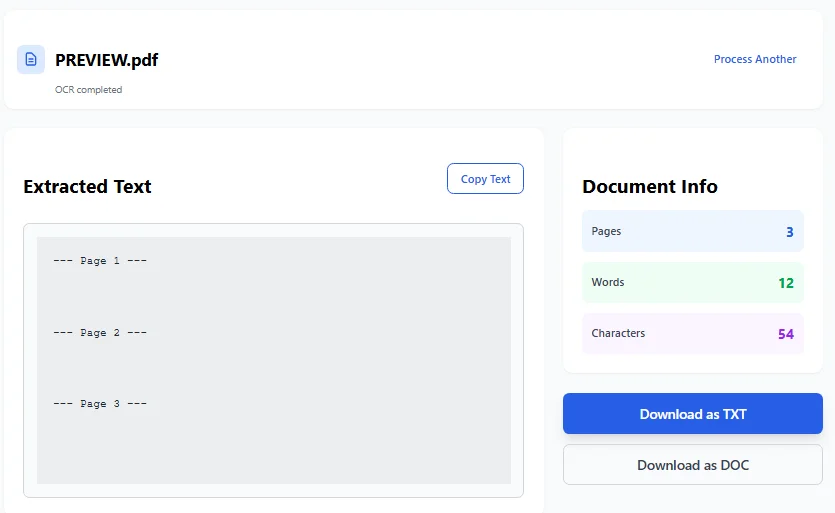
The OCR PDF results screen displays the successfully extracted text from a scanned document. Users can preview the recognized text, view document statistics (pages, words, characters), and download the output in multiple formats including TXT and DOC files for further editing.
Free Software That Can Run an OCR on a PDF
Several online PDF tools offer OCR features at no cost. These platforms let you upload PDF files and extract text without installing anything.
Popular choices include OCR.space and ILovePDF. Both handle basic OCR tasks well. They work directly in your browser, so you don’t need to download software.
Adobe Acrobat online also provides OCR capabilities. The interface is clean and the results are reliable.
Most online OCR services have file size limits. Some restrict document file sizes to 5-10MB for free accounts.
Using Adobe Acrobat Pro for OCR
Adobe Acrobat Pro remains a standard tool for PDF work. It includes built-in OCR that produces high-quality results.
The software recognizes text in multiple languages. It handles poor-quality PDF scans better than many free options. Adobe Acrobat tools also let you edit the OCR-recognized text directly.
One advantage: Adobe Acrobat keeps encryption intact when processing PDFs. This matters when working with sensitive documents. For protected files, you can unlock PDF documents securely.
The downside? Adobe charges a monthly subscription fee.
How Online PDF Tools Work
Online PDF services operate through your web browser. You upload a file, the server processes it, then you download the result.
These platforms use their own OCR software to scan your document to apply free text recognition. Most work well with single-page PDFs and standard fonts. Similar to HTML to PDF conversion, these tools process documents efficiently online.
However, online reader tools may struggle with:
- Handwritten text
- Complex layouts with multiple columns
- Low-resolution scans
- Unusual fonts or symbols
For simple tasks, online tools get the job done quickly.
Converting PDF to Different Formats
After OCR processing, you might want to convert your searchable PDF into other formats. This makes content easier to work with in different programs.
Common conversions include:
- PDF to Word document for editing in Microsoft Office
- PDF to plain text for quick reference
- PDF to searchable PDF/A for long-term storage
Some PDF features get lost during conversion. Formatting may change. Images might shift position. Always check the output before deleting your original. You can also convert PDF to XML for structured data extraction.
Best Practices for OCR Quality
The quality of your scan affects OCR results. Better input means better output.
Tips for readable results:
- Scan at 300 DPI or higher
- Use good lighting when photographing documents
- Keep pages flat and straight
- Clean the scanner glass
- Use black text on white backgrounds when possible
Poor scans produce poor OCR. If the text isn’t clear to your eyes, it won’t be clear to the software.
Working With Non-Searchable PDFs
Many older PDF documents are non-searchable PDFs. They were created by scanning paper without OCR. These useful documents just sit there, impossible to search or edit.
Running these through an OCR tool breathes new life into them. Suddenly you can find specific information in seconds instead of reading through every page.
This proves especially helpful with:
- Old contracts
- Historical records
- Archived reports
- Legacy business files
PDF/A Format for Archiving
The PDF/A format is designed for long-term document storage. It’s a special type of searchable PDF—or convert your regular PDF to PDF/A—that embeds all fonts and resources.
This format ensures your document looks the same decades from now. It’s transparent, meaning everything needed to display the document is contained within the file itself.
Libraries, governments, and businesses use PDF/A when they need permanent records.
Additional PDF Tools and Features
Beyond OCR, PDF tools offer many features:
- Merge multiple files into one
- Split large documents into separate PDF pages
- Compress files to reduce size
- Add e-signatures to contracts
- Protect with passwords
Some platforms let you sign PDFs and collect e-signatures from others. This eliminates printing, signing, and scanning. Tools like PDF24 offer comprehensive PDF management features.
Modern PDF tools have transformed how we handle paperwork.
Making the Most of Your Documents
A selectable PDF document opens up possibilities that static PDFs simply can’t match. You can search, edit, and reuse content easily.
Whether you use Adobe or Smallpdf, the key is choosing the right tool for your needs. Simple jobs work fine with free online options. Complex projects benefit from professional software.
The goal is making document content readable and useful. OCR technology turns paper into digital assets you can actually work with.
Remember: the format you choose matters less than ensuring your text is accessible and searchable. That’s what transforms a simple scan into a truly useful resource.