Compress PDF
Reduce your PDF file size while maintaining quality. Choose compression level that suits your needs.
Click to upload or drag and drop
PDF files only (Max 50MB)
Compression Level
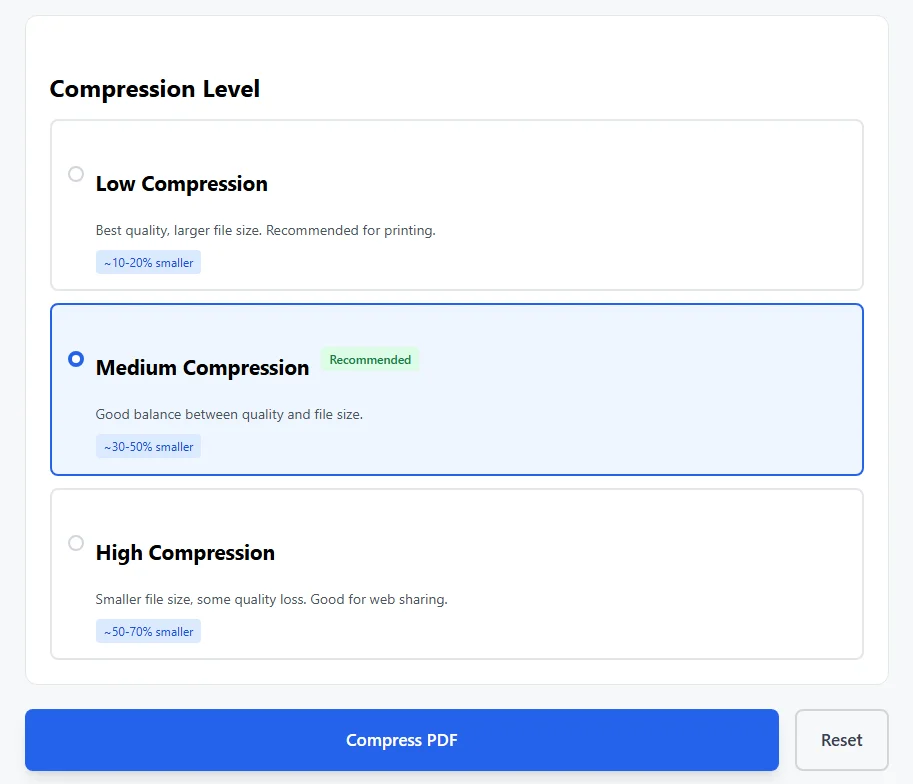
Low Compression
Best quality, larger file size. Recommended for printing.
Medium Compression
RecommendedGood balance between quality and file size.
High Compression
Smaller file size, some quality loss. Good for web sharing.
Compressing PDF…
Please wait while we optimize your file
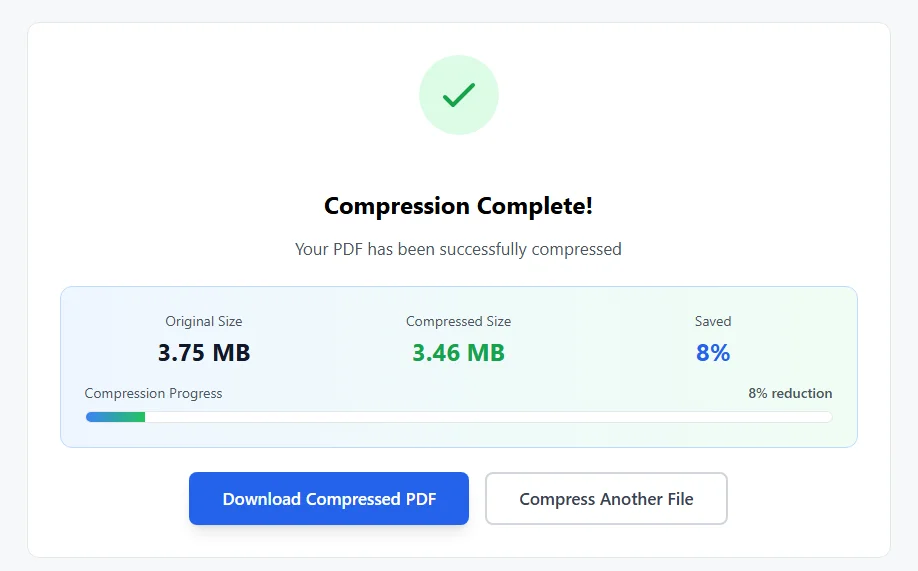
Compression Complete!
Your PDF has been successfully compressed
Original Size
–
Compressed Size
–
Saved
–
Why You Should Compress PDF Files
PDF files can grow large quickly. High-quality images add megabytes. Scanned pages do the same. Fonts and layers build up size. A simple report turns into a 50MB file. Large PDFs cause problems. Emails bounce back. Uploads to forms fail. Downloads take minutes. Storage on phones or drives fills fast. Compressing PDF files solves these issues. It reduces file size. Keeps quality decent. Makes sharing simple.
Many people in the US deal with big PDFs daily. Work reports. Legal documents. School projects. Job applications. All need to move fast. Tools like Adobe Acrobat or Adobe Acrobat Pro offer strong PDF compression. They use advanced compression algorithms. But they require payment. Free options exist too. Sites like SmallPDF provide online PDF compression. Some need accounts. Others limit uses. Our free PDF compressor works different. No sign-up. No limits. Handles files up to 50MB.
How to Compress PDF Files with This Tool
The process stays simple. You pick compression level. Tool does the rest. Here are the steps:
- Click the box or drag your PDF file in.
- Wait for upload (max 50MB).
- Select from low, medium, or high compression levels.
- Medium is recommended for most cases.
- Click Compress PDF.
- Watch progress bar fill.
- See original size and compressed size.
- View your file size reduction.
- Download the new compressed PDF file.
- Compress another if needed.
Work happens in your browser. No files go to servers. Privacy stays safe.
Understanding Compression Levels
Three options fit different needs:
- Low compression: Keeps highest quality. Reduces size about 10-20%. Best for printing or high detail.
- Medium compression: Good mix of quality and size. Cuts 30-50%. Works for email and sharing.
- High compression: Makes smallest files. Cuts 50-70%. Some quality loss in images. Great for web or storage.
Tool targets images mainly. Shrinks them smart. Text and vectors stay clear. Lossless compression keeps data exact where possible.
Common Reasons People Compress PDFs
Every day uses include:
- Fit email attachment limits (Gmail caps at 25MB).
- Upload resumes to job sites faster.
- Send contracts without delay.
- Share scanned documents with family.
- Save space on Dropbox or Google Drive.
- Post large PDF files to websites.
- Archive old reports small.
- Get multiple PDFs ready for a single email.
Example: A scanned book page hits 15MB each. Compress to medium. Whole book shrinks from 300MB to 120MB. Fits on phone easy.
What Makes PDFs Large
Several things add size:
- High-res images or photos.
- Scanned pages at high DPI.
- Embedded fonts.
- Multiple layers from design software.
- Unused objects or metadata.
Our PDF compression tool cleans some of that. Reduces image file formats inside. Applies compression process smart.
Tips for Best PDF Compression
Get great results with these:
- Start with medium compression level.
- Use low for print needs.
- Pick high for screen-only PDFs.
- Compress PDFs with many images for biggest savings.
- Text-only files shrink less.
- Check downloaded file quality.
- Combine with other PDF tools like split PDFs if needed.
Unlike Acrobat online PDF tools, this one stays free always. No Adobe servers involved. No GDPR worries about data.
Why This Free PDF Compressor Stands Out
Many PDF tools exist. Some like PDF24 offer good compression. SmallPDF has easy interface. But limits hit quick. Our tool gives:
- No watermarks on compressed PDF files.
- No daily limits.
- Clear stats on size saved.
- Three clear compression levels.
- Fast work on large PDFs.
- Private processing.
You keep control. Click save on your own device.
Other Helpful PDF Tools
Compression pairs well with others. Merge files. Split PDFs. Edit content. Sign PDFs. All help manage documents. Keep file size low from start. Export from Word with care. Avoid extra images if possible.
Large files waste time. Compress PDF files free here. Upload now. Watch size drop. Download ready to send. Questions on compression quality or levels? Add comments below.